Getting Started
Mobile Service Sync is a field CRM built for mobile oil change businesses. It gives you a single place to manage your customers, schedule work orders, track your technicians, and generate invoices — all from a browser, on any device.
This guide walks you through signing in and getting familiar with the dashboard.
Sign in
Navigate to your shop's URL and sign in with your email address and password.
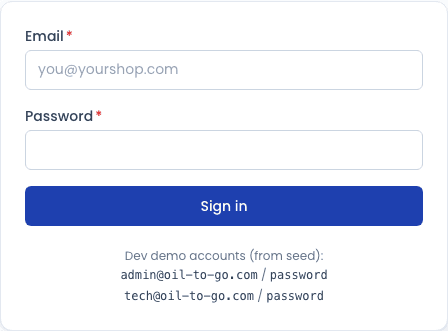
Forgot your password? Contact your account owner to have a new invitation sent. Password reset self-service is coming in a future release.
The dashboard
After signing in, you land on the Dashboard. It shows you an at-a-glance view of today's business:
- Scheduled today — how many work orders are on the calendar for the current day.
- Completed today — work orders marked complete since midnight.
- Open invoices — invoices that have been generated but not fully paid.
- Revenue today — sum of all payments received today.
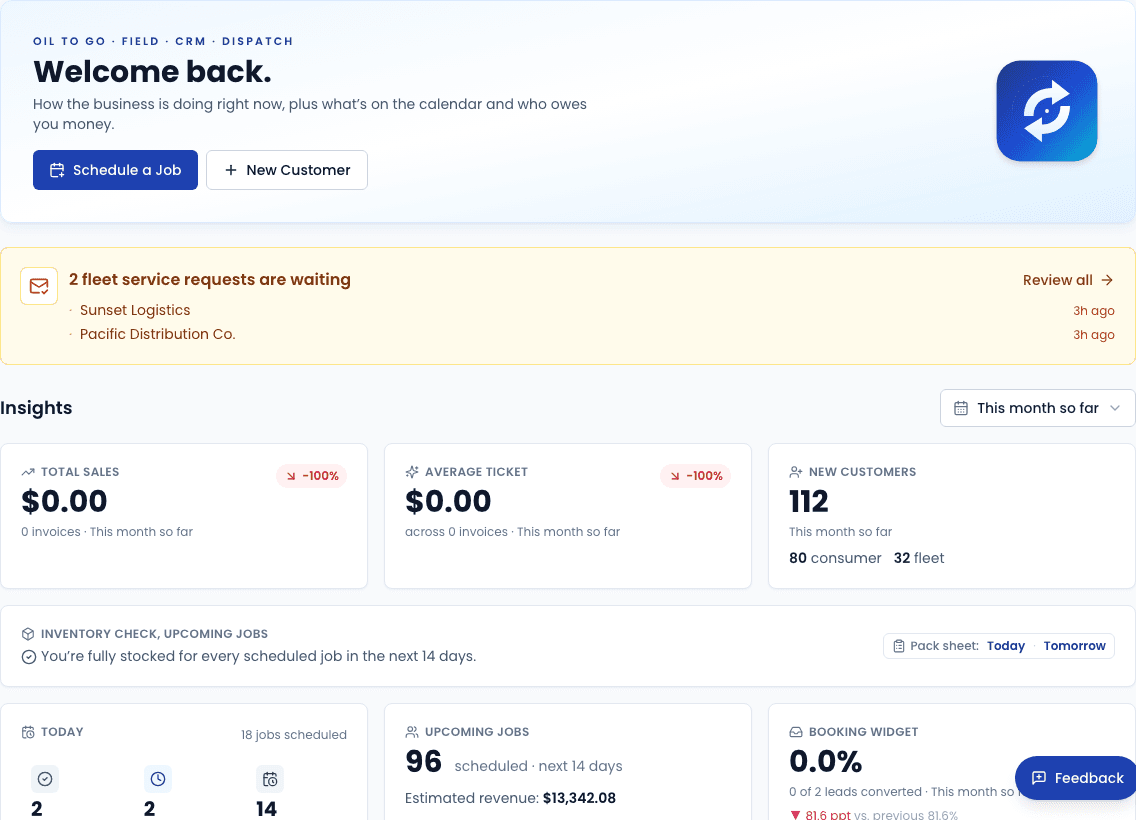
The sidebar on the left gives you access to every section of the app. Use it to navigate to Customers, Work Orders, Schedule, Inventory, and Settings.
Next steps
Add your shop details
Go to Settings → Shop and fill in your shop name, address, phone number, and time zone. This information appears on invoices and in the customer portal.
Set your business hours
Go to Settings → Business Hours to define the days and hours your shop is available. This controls the booking widget and helps the schedule view set sensible defaults.
Invite your technicians
Go to Settings → Team → Invite to add your technicians. Each user can be assigned a color that shows up on the schedule grid so you can see who has what at a glance.
Add your first customer
Go to Customers → New customer and create your first record. Learn how →
Create your first work order
Once you have a customer and a vehicle, go to Schedule and book their first appointment. Learn how →