Completing a Work Order
When a technician finishes a job, they advance the work order through a five-step status pipeline. The final step generates an invoice and, optionally, records payment on the spot.
The status pipeline
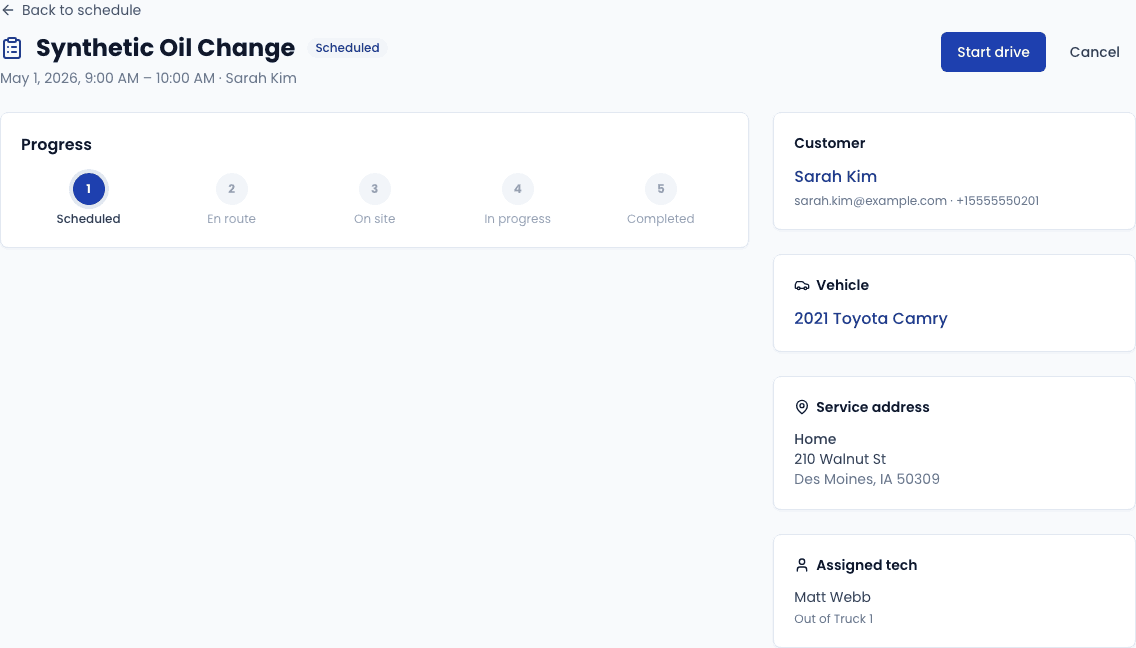
Every work order moves through these statuses in order:
Scheduled → En route → On site → In progress → Completed
Each transition is triggered by a button on the work order detail page.
Advancing through the pipeline
Scheduled → En route: "Start drive"
When the technician leaves for the job, click Start drive. This timestamps the departure and updates the status to En route.
En route → On site: "Mark arrived"
When the technician arrives at the service location, click Mark arrived. Status becomes On site.
If the customer is not present when the technician arrives, use the Mark no-show button instead of advancing to In progress.
On site → In progress: "Start service"
When the technician begins the oil change, click Start service. Status becomes In progress and the Mark complete form appears below the timeline.
In progress → Completed: Fill in the complete form
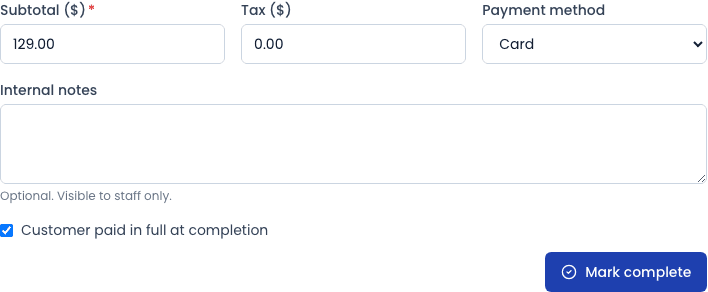
The form has two fields:
| Field | Notes |
|---|---|
| Final total ($) | Pre-filled from the service type's default price. Override if the actual charge differs. |
| Payment received | Toggle on to record an on-the-spot payment. Choose the payment method (Cash, Card, Check, Other) and enter the amount. |
Click Complete job to finish. The system:
- Sets status to Completed
- Records the completion timestamp
- Generates an invoice automatically
- Records the payment (if you entered one)
After completion
Once completed, the work order detail shows:
- The full status timeline with all timestamps
- The generated invoice with line items, tax, total, and payment status
- Any customer notes or internal notes attached to the job
Canceling or marking no-show
If a job cannot be completed:
- Cancel — removes the job from the schedule. Available from any status. The technician or operator can add a reason in the internal notes field.
- No-show — available when the status is On site. Records that the technician arrived but the customer was absent.
Neither action deletes the work order — it remains in history for reference.
Next steps
- Viewing the schedule →
- Managing invoices → (coming soon)