Adding a Customer
Every work order in Mobile Service Sync is tied to a customer record. This article walks you through creating a new customer, adding their vehicle, and setting up a service address.
Create a customer record
Go to Customers → New customer
From the sidebar, click Customers, then click the New customer button in the top-right corner.
Adding a fleet account from scratch? Click Add a fleet instead (on the Customers index or the Fleet Accounts page). It opens the same new-customer form pre-set to the fleet variant - or land on /customers/new?type=fleet directly. The form renders as New fleet account with company-oriented fields. You can still convert an existing consumer customer to fleet later via Convert to Fleet if you change your mind.
Fill in Basic info
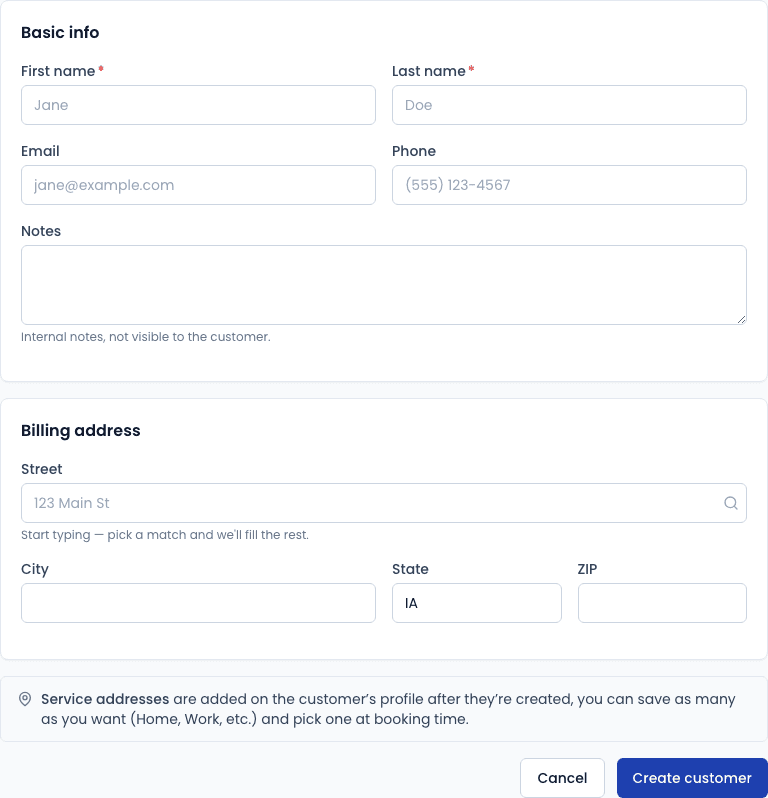
| Field | Required | Notes |
|---|---|---|
| First name | Yes | |
| Last name | Yes | |
| No | Used for invoice delivery (coming soon) | |
| Phone | No | Displayed on the work order detail |
| Notes | No | Internal only - not visible to the customer |
Fill in Billing address
Start typing the street address and select from the autocomplete suggestions. The suggestions are biased toward your shop's service area automatically.
Service addresses (where the technician drives to) are added separately on the customer's profile after they're created. You can save as many as you want - Home, Work, etc. - and choose one at booking time.
Click "Create customer"
You'll be taken to the new customer's profile page.
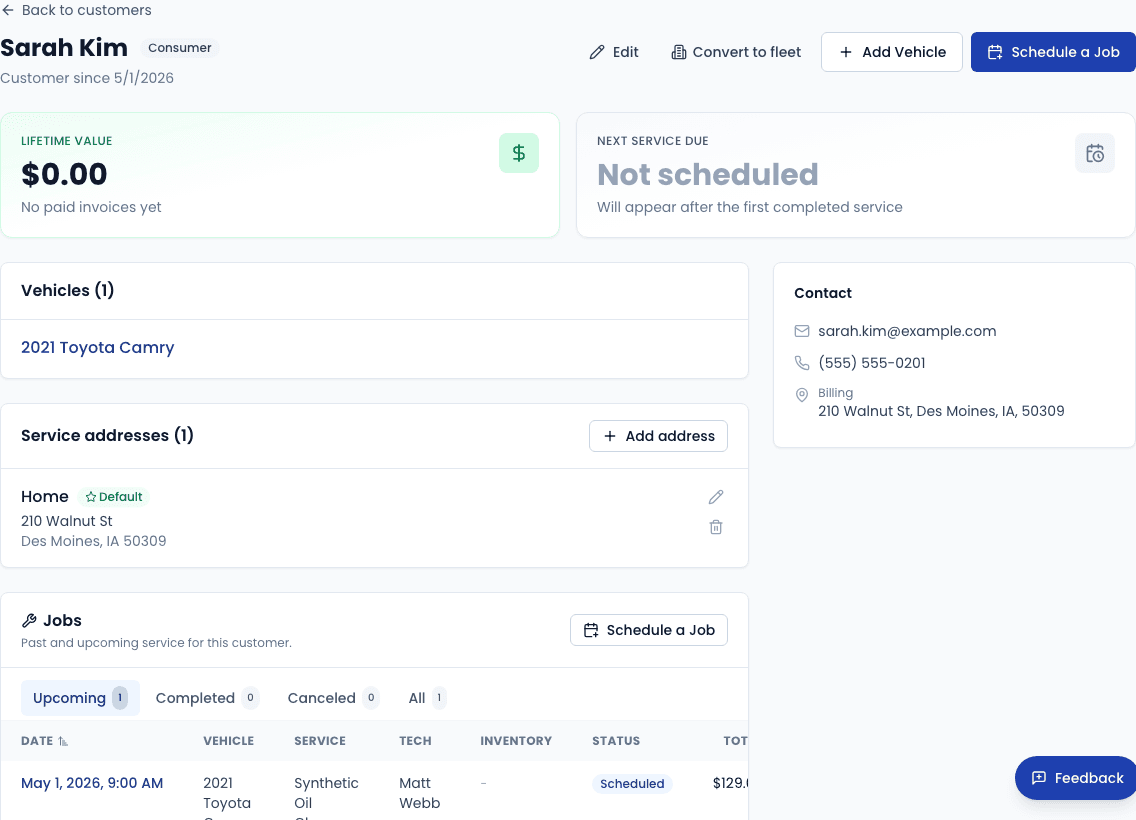
Add a vehicle
A vehicle must be added to the customer before you can book a work order.
Open the customer's profile
From the customer list, click the customer's name to open their profile.
Click "Add vehicle"
On the profile page, find the Vehicles section and click Add vehicle.
Look up the vehicle
Enter the license plate (with its state) or the 17-character VIN. The decoder pre-fills year, make, model, trim, engine, transmission, drivetrain, fuel type, and body style automatically - a plate lookup usually returns the color too. You can also skip the lookup and enter year, make, and model by hand.
Save
Click Add vehicle. The vehicle appears under the customer's profile and is now available when creating a work order.
Add a service address
On the customer's profile, find the Addresses section
Click Add address.
Fill in the address details
Give it a label (e.g., "Home", "Office", "Work parking lot") and enter the street address using the autocomplete.
You can optionally add access notes - these appear on the work order detail so the technician knows where to park, gate codes, etc.
Save
The address is now selectable when creating a work order for this customer.
Add additional contacts
If a customer has multiple people who should be kept in the loop (e.g., a fleet manager and an accounts payable contact), you can add extra contacts under the Contacts section on their profile.
Fleet customers - If this customer manages multiple vehicles across a team or business, they may be better served by a Fleet Account. Contact us to discuss the fleet setup.