Creating a Work Order
A work order is a scheduled appointment to perform a service at a customer's location. It ties together a customer, a vehicle, a service type, a technician, and a time window.
Before you start
You'll need:
- A customer record with at least one vehicle and one service address.
- At least one service type configured in Settings.
- At least one technician on your team.
Create the work order
The fastest way to create a work order is from the Schedule page.
Open the Schedule
Click Schedule in the left sidebar.

Click "New work order"
The new work order modal opens.
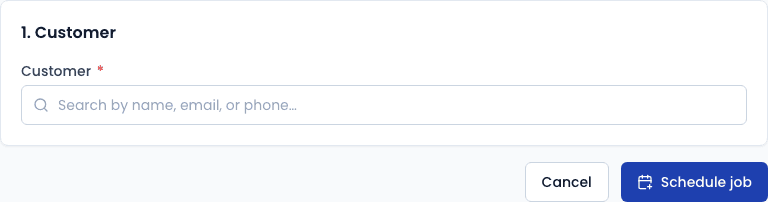
Select the customer
Start typing the customer's name and select them from the dropdown.
Select the vehicle
Once a customer is selected, their vehicles appear in the next dropdown. Choose the vehicle being serviced.
Select the service type
Pick from the service types configured in Settings → Service Types (e.g., Conventional Oil Change, Synthetic, etc.). The default price and duration are pre-filled from the service type but can be overridden.
Set the date and time window
Choose the date and the start/end times for the appointment window. The duration defaults to the service type's configured duration.
Select the service address
Choose from the customer's saved addresses. If they don't have one yet, you'll need to add a service address to their profile first.
Assign a technician
Select the technician who will perform the service. Their schedule color will appear on the day-view grid.
Add notes (optional)
- Customer notes — visible to the customer in the fleet portal (if applicable).
- Internal notes — visible only to your team.
Save
Click Create work order. The job appears on the schedule grid and its status is set to Scheduled.
Work order statuses
Once created, a work order moves through the following statuses as the technician works the job:
| Status | Meaning |
|---|---|
| Scheduled | Booked but not yet started |
| En route | Technician has started driving to the location |
| On site | Technician has arrived |
| In progress | Service is underway |
| Completed | Service finished, invoice generated |
| Canceled | Job was canceled before completion |
| No-show | Technician arrived but the customer was not present |
Status updates are typically advanced by the technician on their device. Operators can also advance or cancel a work order from the work order detail page.