Settings
Settings are organized into a hub of tabs accessible from any settings page. Navigate to Settings in the sidebar to get started.
This page is a quick tour. Each tab below also has its own dedicated guide; follow the links for the full reference.
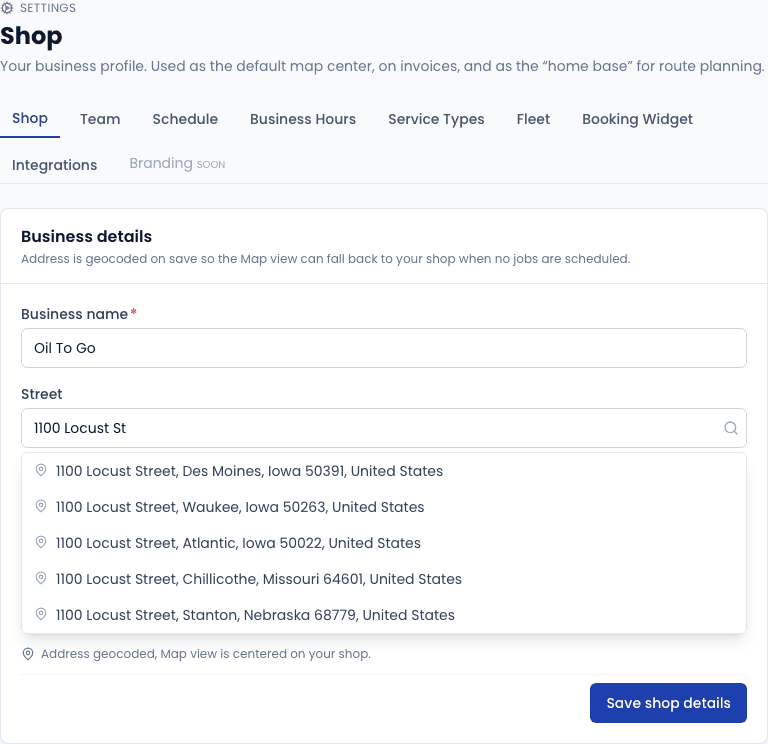
Shop
Settings → Shop stores your business profile. This information appears on invoices and is used as the default center point for the schedule map and route optimization.
| Field | Required | Description |
|---|---|---|
| Business name | Yes | Your shop's trading name. Appears on invoices and the booking widget. |
| Street address | Yes | Street address of your shop or home base. Geocoded on save so the schedule map can use it as your home pin. |
| City | Yes | |
| State | Yes | Two-letter state code. |
| ZIP | Yes | |
| Phone | Optional | Displayed on invoices and the booking widget header. |
| Optional | Reply-to address on customer-facing emails. |
After saving, a geocoding request runs in the background to convert your address to latitude/longitude. The map view shows a spinner until this completes. If geocoding fails (e.g. the address is non-standard), a warning badge appears on the Shop page — edit and re-save to retry.
Team
Settings → Team lets you invite technicians and office staff, assign roles, and manage permissions.
Roles
| Role | What they can do |
|---|---|
| Owner | Full access — billing, settings, all data |
| Admin | All operator actions; cannot change billing |
| Office Manager | Customers, work orders, schedule, invoicing — no settings |
| Technician | View and update their own assigned work orders |
Inviting a team member
Click Invite
Click Invite team member in the top-right of the Team page.
Enter their email and role
Enter the email address and select the appropriate role. You can optionally set a pay rate (hourly, commission, or hybrid) for payroll reporting.
Send the invite
The team member receives an email with a link to set their password and join your account.
Technician accounts can only see work orders assigned to them. If a job is unassigned, the technician won't see it in their mobile view.
Schedule
Settings → Schedule controls display preferences for the schedule view.
| Setting | Description |
|---|---|
| Default view | Which view opens by default: day, week, month, or map |
| Technician colors | Assign a hex color to each technician — used for column headers in the grid and pin colors on the map |
Business Hours
Settings → Business Hours defines the days and hours your shop accepts bookings. The booking widget uses these hours to constrain the date/time picker so customers can only request slots when you're open.
Set open and close times for each day of the week. Leave a day blank (or toggle it off) to mark it as closed.
Service Types
Settings → Service Types is where you define every service you offer. Services come in three kinds:
- Packages - flat-rate canned jobs (full synthetic oil change, brake service).
- Add-ons - optional extras layered onto a package (filters, wipers, TPMS reset).
- Fees - standard fees added to invoices (shop fee, disposal fee, after-hours surcharge).
Inactive types are hidden from the booking widget but remain on historical work orders.
See the full guide: Service Types →
Fleet
Settings → Fleet provides a list of all fleet accounts with links to their individual configuration pages. From each fleet's settings you can:
- Set the default service interval (miles and/or days)
- Configure billing terms (on completion, Net 15, Net 30)
- Toggle the self-serve fleet portal and copy the portal token URL
- Set custom pricing for specific services or vehicles
Service Area
Settings → Service Area defines where you're willing to drive. Configure a mile radius around your shop (or a custom center point), an explicit ZIP-code allowlist, or both. The booking widget uses this to flag out-of-area bookings for your review rather than silently accepting them.
See the full Service Area setup guide →
Integrations
Settings → Integrations is where you connect third-party services. Currently supported:
PartsTech — Enter your PartsTech API key to enable the Parts Search page and vehicle-specific parts lookup from work orders. See the Integrations article for setup steps.
Branding
Settings → Branding controls how your shop appears on customer-facing surfaces (booking widget, public quote pages, fleet portal, invoice PDF, customer emails). Upload a logo, pick a primary and accent color, and the changes propagate everywhere.
See the full guide: Branding →
Subscription Billing
Settings → Billing is where you manage your subscription to Mobile Service Sync (separate from Sync Pay, which is how you charge your customers). Pick a plan, change plan, manage your payment method via the Stripe customer portal, and see your trial status.
Requires the BILLING_READ permission (Owner / Admin by default).
See the full guide: Subscription Billing →
Sync Pay
Settings → Sync Pay connects your tenant to Rainforest Pay so you can accept card and ACH payments on invoices, save cards on file, and handle chargebacks - all without a separate Stripe or Square account.
See the full guide: Sync Pay →
SMS
Settings → SMS is the hub for everything texting-related: bind your office number, register for A2P 10DLC (required by US carriers), and manage SMS-related defaults. Gated to users with the SMS_ADMIN permission.
See the full guide: SMS Settings →
Reminders
Settings → Reminders controls two automated outreach programs: service-due reminders (sent when a vehicle is approaching its projected next service) and appointment reminders (day-before, optionally with a one-click confirm link).
See the full guide: Reminders →
Reviews
Settings → Reviews controls the automated review-request program - after a paid (or completed) job, the system can text or email the customer asking for a review on Google, Facebook, or any other URL you configure.
See the full guide: Review Requests →
Notifications
Settings → Notifications is a per-user preferences page. Each user picks which event types (bookings, fleet requests, A2P state changes, etc.) ping them on which channels (in-app, email, SMS).
Inspections
Settings → Inspections is where you build inspection templates - pre-service walkarounds, post-service checklists, brake inspections. Each template has a trigger (before work, after work, both, or on-demand) and a list of pass/fail/photo items.
See the full guide: Inspections →
Quotes
Settings → Quotes is a small page with two knobs that govern the quote workflow: whether customers can self-schedule a time slot after accepting a quote, and the default validity period (days) prefilled on new quotes.