Inventory
Mobile Service Sync tracks the oils, filters, and other consumables you carry on your truck. The catalog gives you at-a-glance stock levels, flags items that have dropped below their reorder point, and feeds the daily Pack Sheet so you know exactly what to load before heading out.
The catalog
Navigate to Inventory in the sidebar to see your full catalog.
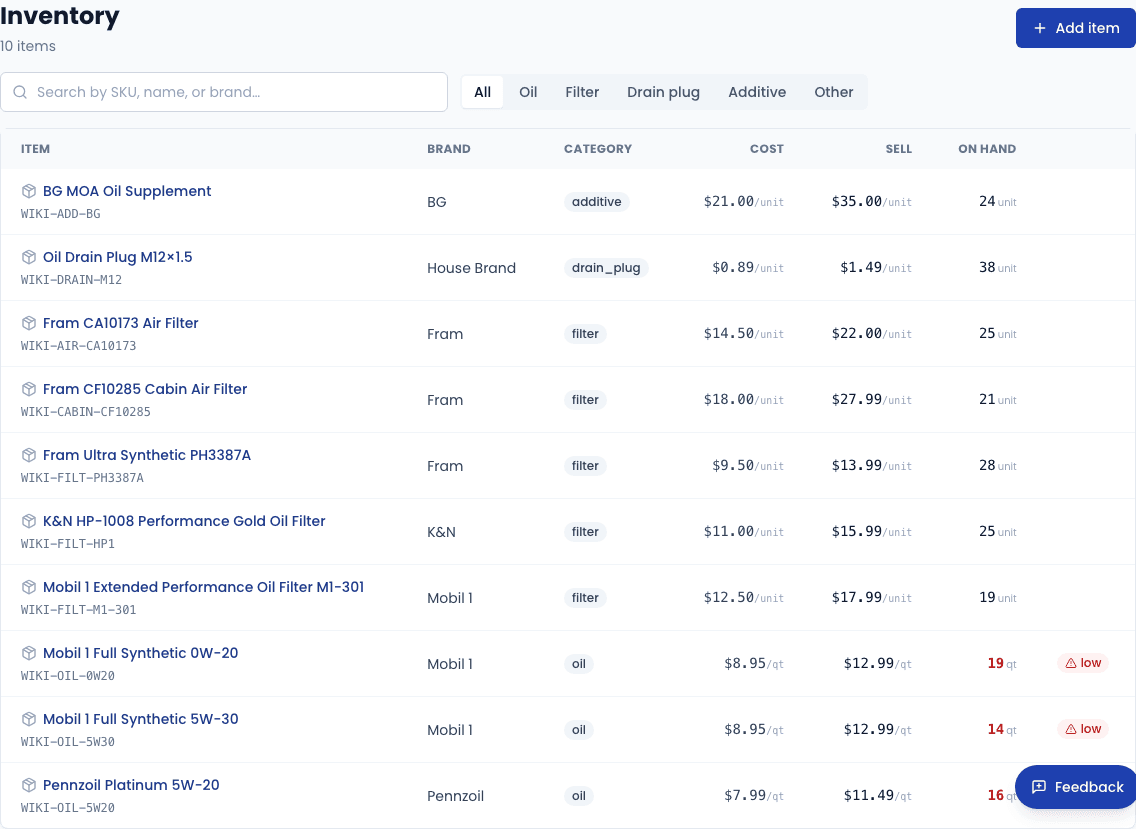
Each row shows:
| Column | What it means |
|---|---|
| Item / SKU | Product name and your internal stock-keeping unit |
| Brand | Manufacturer or house brand |
| Category | oil · filter · drain_plug · additive · other |
| Cost | What you pay per unit |
| Sell | What you charge per unit on work order line items |
| On hand | Total quantity across all locations (warehouse + trucks) |
Items with a low badge have fallen at or below their reorder point. Inactive items are dimmed and hidden from the booking widget but remain in the catalog for historical work orders.
Use the category pills to filter by type, or the search bar to look up by SKU, name, or brand.
Adding an item
Open the new item form
Click Add item in the top-right corner of the Inventory page.
Fill in the details
| Field | Description |
|---|---|
| Name | Full product name (e.g. "Mobil 1 Full Synthetic 5W-30") |
| SKU | Your internal code — must be unique within your account |
| Brand | Manufacturer name (e.g. "Mobil 1", "Fram", "House Brand") |
| Category | oil, filter, drain_plug, additive, or other |
| Unit | How the item is measured: qt, unit, or case |
| Unit cost | Your cost per unit (used for margin reporting) |
| Sell price | Default sell price added to work order line items |
| Reorder point | Stock level that triggers the "low" alert |
| Reorder quantity | How many units to order when you reorder |
Save
Click Save item. The item is created with zero stock. Adjust quantities next.
Adjusting stock
Open any inventory item and click Adjust stock. Select the location (Main Warehouse, Truck 1, etc.) and enter the quantity change — positive to add stock, negative to remove it. Add a note describing the reason (e.g. "Received PO #42" or "Wrote off 3 damaged quarts").
Every adjustment is recorded as a stock movement so you have a full audit trail of what came in, what went out, and why.
Stock movements are also created automatically when you add a part from PartsTech to a work order line item and mark the work order complete.
Daily Pack Sheet
The Pack Sheet tells you what to load onto your truck before each day's jobs.
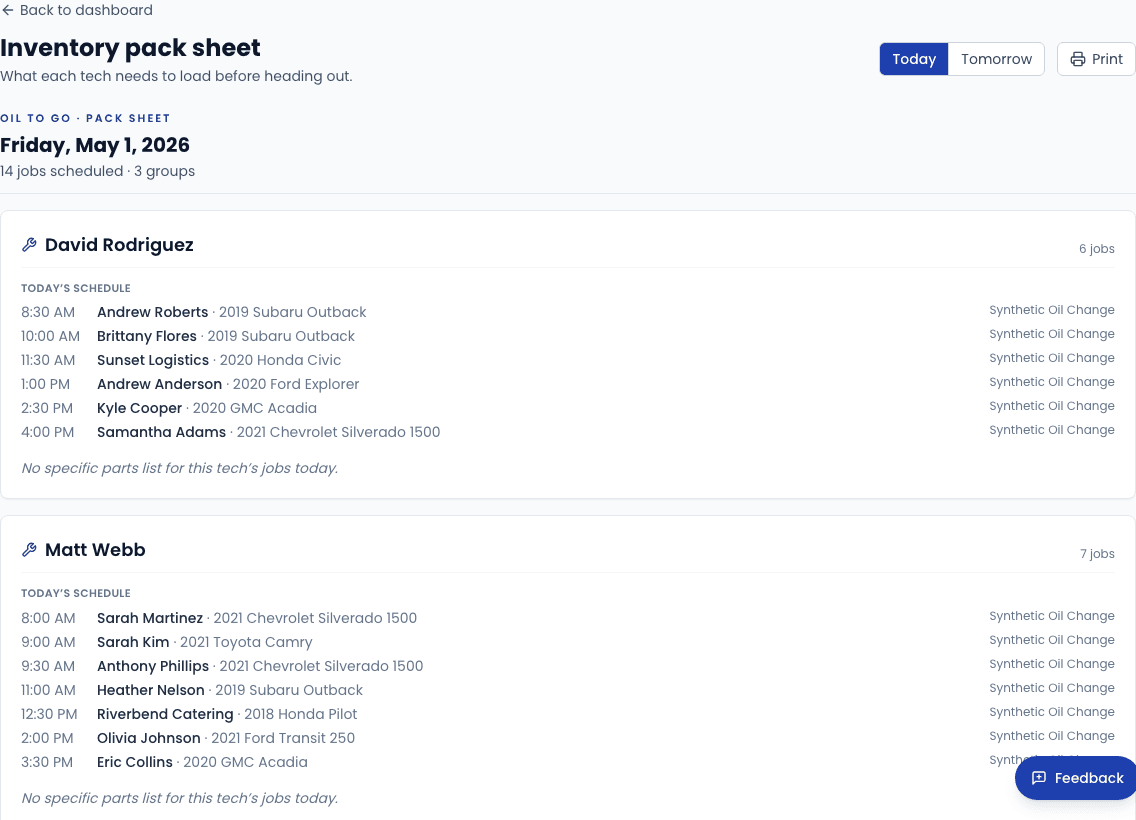
Navigate to Reports → Pack Sheet (or the Inventory Report link in the sidebar). The report groups items by job for today's scheduled work orders, so you can pull stock location by location. Click Print to send it to a printer or save as PDF — the header and controls are hidden in the printout so the page is clean for clipboard use on the truck.
PartsTech parts lookup
If you have a PartsTech account connected under Settings → Integrations, you can look up parts by vehicle from the Parts Search page. Search by year/make/model or OE part number, then add matched parts directly to an open work order as line items at the PartsTech retail price with your configured markup.
Parts added from PartsTech are not deducted from your inventory stock automatically — they are treated as ordered/drop-shipped parts. Only items drawn from your on-hand catalog affect stock levels.
Starter catalog
If you'd like a head start instead of building your catalog from scratch, contact support and we'll seed a House Brand starter set (common oil viscosities and generic filters) into your account. Edit any item afterward to match your actual supplier pricing.