Fleet Portal
Mobile Service Sync has two fleet-facing surfaces: the Fleet Accounts section inside the operator app (where you manage fleets day-to-day), and the Fleet Portal — a branded, public URL you share with each fleet manager so they can self-serve without logging into your account.
Fleet Accounts (operator view)
Navigate to Fleet in the sidebar to see all your fleet customers in one place.
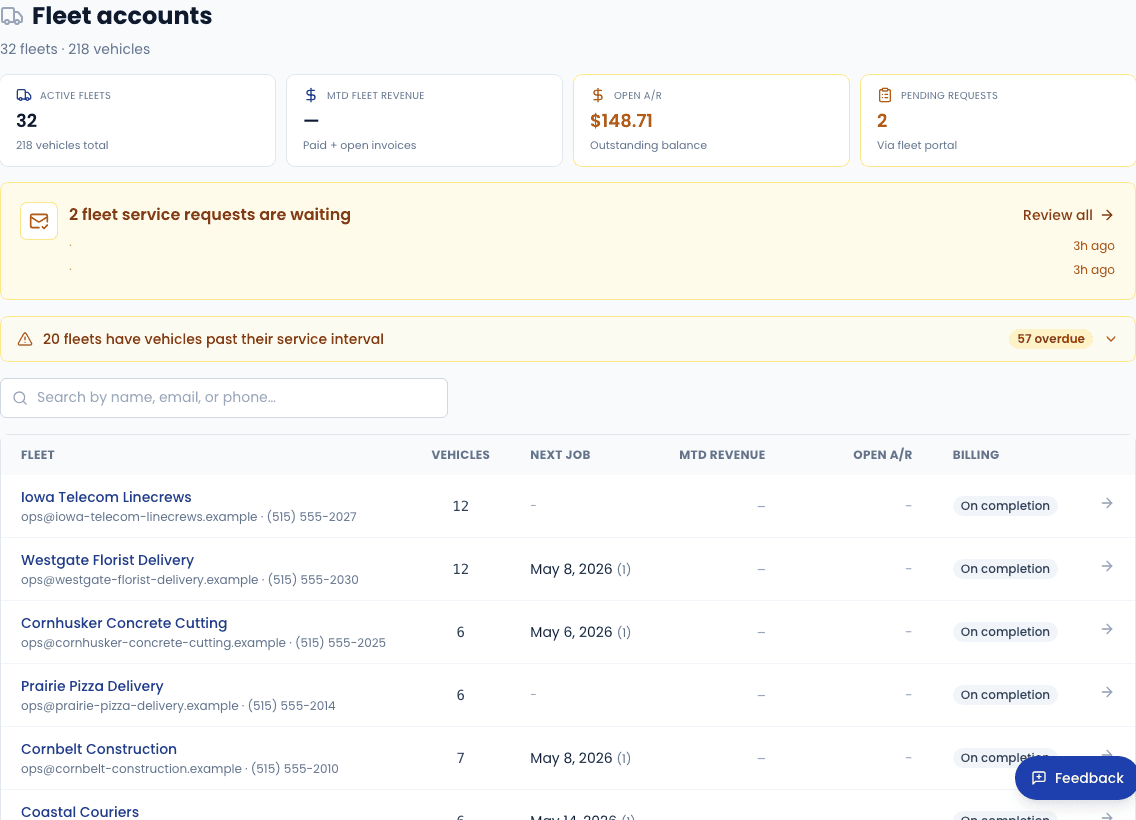
Each row surfaces the signals you need first thing in the morning:
- Vehicles — total active vehicles on the account
- Next job — date of the next scheduled work order for any vehicle in the fleet
- MTD revenue — invoiced revenue for the current calendar month
- Open A/R — unpaid invoice balance outstanding
Click any fleet to open the detail page.
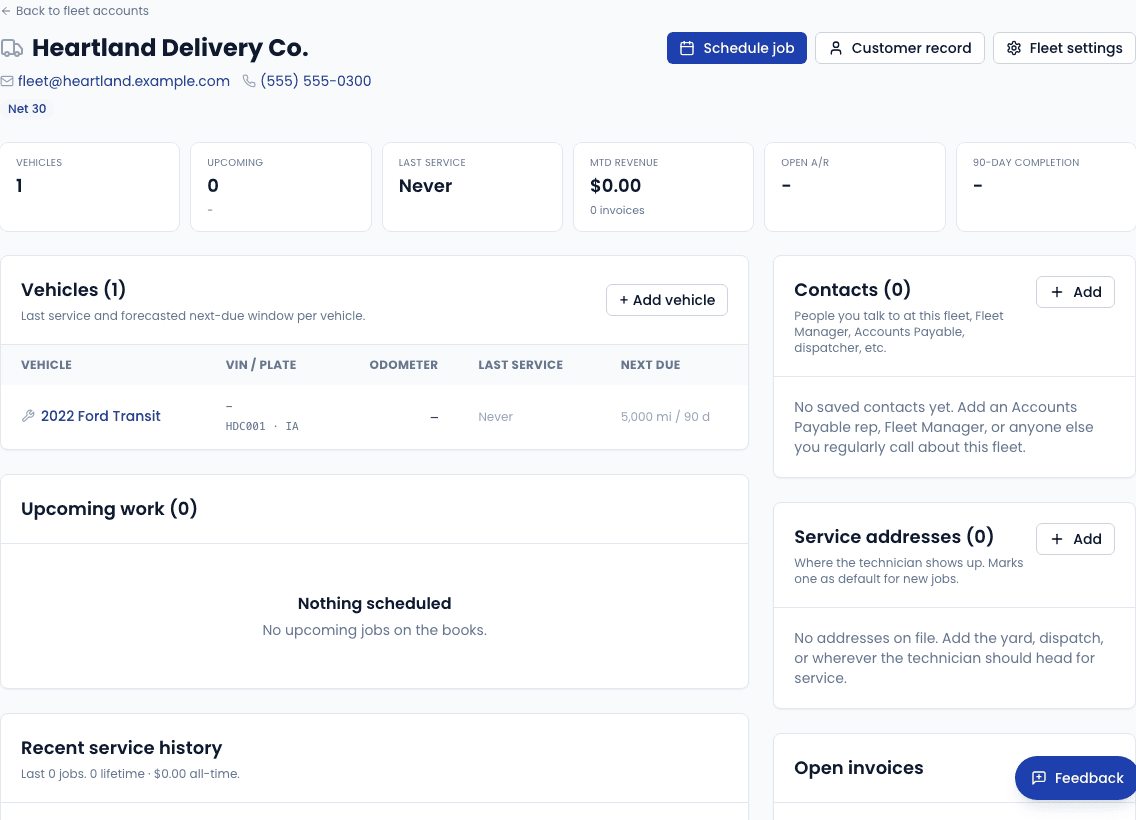
The detail page shows the fleet's contact information, every vehicle and its service status, upcoming jobs, and a complete work order history. An amber alert appears next to any vehicle that has exceeded its service interval.
Setting up a fleet account
Fleet accounts are created from the customer record. If a customer already exists as a consumer, you can convert them to a fleet from their customer detail page. For a brand-new fleet:
Create the customer
Go to Customers → New customer. Set the customer type to Fleet and fill in the company name, contact name, email, and phone.
Add vehicles
From the customer detail page, click Add vehicle and enter the year, make, model, and license plate for each vehicle in the fleet.
Configure fleet settings
Go to Settings → Fleets and click the fleet account. Set:
- Default service interval — miles and/or days between oil changes for the whole fleet (individual vehicles can override this)
- Billing terms — On completion, Net 15, or Net 30
- Portal — toggle to enable the self-serve fleet portal and generate the portal token URL
The Fleet Portal (customer-facing)
When the portal is enabled, the fleet manager receives a URL like:
https://yourapp.com/portal/abc123xyz
No login required — the token in the URL authenticates the session. The portal is read-only from the fleet manager's perspective; they cannot modify vehicle records or billing details.
What the fleet manager can do
- Dashboard — see upcoming scheduled jobs and any vehicles overdue for service
- Vehicles — browse all vehicles on the account, view each vehicle's service history and oil spec
- History — full service history with dates, services performed, and invoice totals
- Request service — submit a service request form that appears as a pending request in your operator inbox
- Account — view contact and billing information on file
Service requests submitted through the portal appear in Fleet → Pending requests at the top of the Fleet Accounts page. You review and schedule them manually — they don't auto-book a time slot.
Service intervals and overdue alerts
Mobile Service Sync tracks two interval types per vehicle:
| Interval | Trigger |
|---|---|
| Miles | Vehicle's odometer exceeds last-service odometer + interval miles |
| Days | Days elapsed since last completed work order exceeds the interval |
Whichever fires first wins. Overdue vehicles show an amber warning badge both in the operator's Fleet detail page and on the fleet portal dashboard.
Interval defaults cascade in this order (most specific wins):
- Per-vehicle override (
Vehicle.intervalMiles/Vehicle.intervalDays) - Fleet account default (
FleetAccount.defaultIntervalMiles/defaultIntervalDays) - No alert (if neither is set)
Sharing the portal link
From the fleet detail page, click Copy portal link to copy the token URL to your clipboard. Share it with your fleet manager via email or text — they can bookmark it and return any time.
Treat the portal token like a password. Anyone with the link can view the fleet's vehicles and service history. If a link is compromised, go to Settings → Fleets → [fleet name] and click Regenerate portal token to invalidate the old URL.
Putting a portal link on your own website
Because every customer's portal URL contains their own private token, there is no single portal address you can publish. Instead, each account gets a public lookup page you can link from anywhere:
https://app.mobileservicesync.com/portal/lookup/your-slug
Find your exact URL in Settings → Fleet Portal, under "Portal link for your website". The card has a Copy URL button, a ready-made HTML snippet, and an on/off switch for the page.
What the customer sees
They land on a page branded with your logo and colors, enter the email or phone number you already have on file for them, and choose email or text. Mobile Service Sync sends that customer their own portal link on that channel. If they have never had a portal before, one is created for them on the spot.
Copy the link
Go to Settings → Fleet Portal and click Copy URL.
Add it to your site
On a site builder (Wix, Squarespace, WordPress), add a menu item named "Customer Portal" or "My Account" and paste the URL as its destination. On a hand-coded site, copy the HTML snippet instead and drop it in your header or footer next to your "Book now" link.
Tell your customers
Mention it on receipts and in your appointment reminder templates. Customers who bookmark their portal link never need the lookup page again.
The page never reveals whether an address or number belongs to one of your customers. It shows the same confirmation either way, and the portal link only ever goes to the contact details already on the customer record - so someone who knows your customer's email still cannot reach their records.
The text option only appears when your account has SMS fully set up (a provisioned number and approved A2P registration). Until then, customers see the email option alone.
To take the page down, click Turn off on the same card. The URL then returns Not Found, and your existing /portal/<token> links keep working as before.