Service Area
Settings → Service Area lets you define where you're willing to drive. The booking widget uses this to flag online bookings that land outside your territory so you can review them before sending a technician.
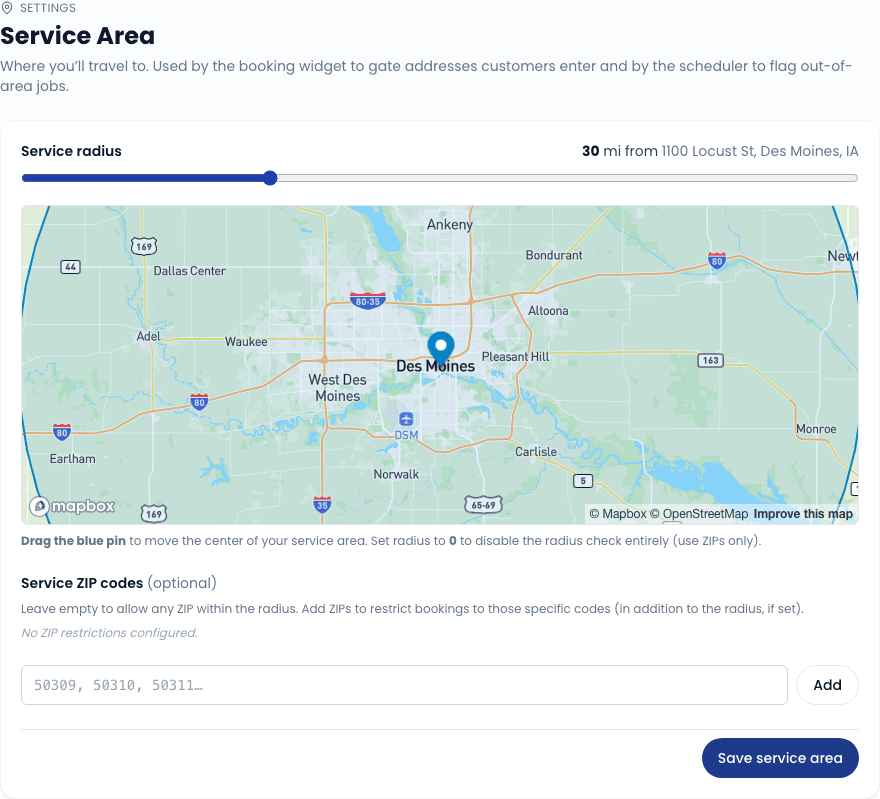
How the gate works
There are two controls, and when both are configured a booking must satisfy both to be considered in-area.
Radius
A circle centered on a point (your shop address by default). Use the slider to set the radius from 1 to 100 miles. The live map shows the circle updating in real time as you drag the slider.
To move the center of your service area — for example, if you work out of a warehouse that's not your shop address — drag the blue pin on the map to the correct location. A Reset to shop address button appears whenever the pin has been moved.
Set the radius to 0 to disable the radius check entirely and rely on the ZIP allowlist alone.
ZIP allowlist
A list of specific ZIP codes you serve. Type a ZIP and press Enter (or comma) to add it as a chip. Click the × on any chip to remove it.
When ZIP codes are entered, a booking's service address ZIP must appear on the list. The radius check runs independently on top of this — both must pass.
When neither control is configured (radius at 0, ZIP list empty) the widget accepts bookings from any address. Set up at least one gate before sharing your booking URL publicly.
Saving your settings
Click Save service area at the bottom of the form. Changes take effect immediately for all new bookings — already-submitted bookings are not re-evaluated.
What happens when a booking comes in outside your area
Out-of-area bookings are never blocked — the booking is accepted so the customer isn't turned away at the last step. Here's what happens:
The work order is created and flagged with a Needs review badge. An internal note records why it was flagged (radius exceeded, ZIP not on the list, or both). You'll receive an email notification so you can act quickly.
The customer sees their normal confirmation screen with an amber notice:
"Heads up: your address may be just outside our usual service area. We've received your booking and someone from [your shop name] will reach out shortly to confirm. If we can't make it work, we'll let you know — no charge until your appointment is confirmed."
Reviewing flagged bookings
Go to Work Orders and filter by source Online booking. Out-of-area jobs show a yellow Needs review badge. Open the work order, check the address, then either:
- Confirm it — assign a technician and proceed as normal.
- Decline it — contact the customer directly to let them know you can't make the trip, then cancel the work order.
The customer's confirmation email is sent immediately when they book, before you review. If you're going to decline, reach out as soon as possible so they have time to make other arrangements.
Edge cases
No GPS coordinates — if the customer's address can't be looked up on the map (for example, a rural route or an address typed manually without picking one of the suggested matches), the radius check is skipped and only the ZIP gate applies. The booking is treated as in-area for the radius portion, so it may still be flagged if the ZIP doesn't match.
Radius only, no ZIP list — a booking passes as long as the geocoded address falls within the radius circle. If coordinates aren't available the booking passes automatically (see above).
ZIP list only (radius = 0) — a booking passes as long as the service address ZIP is on the list. No geometry is involved.