Activity Feed
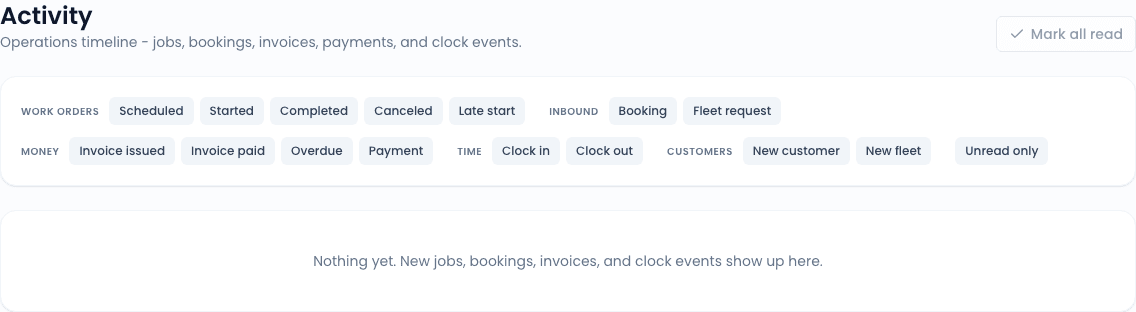
The Activity feed is a chronological log of every event that has happened in your account: work orders scheduled, completed, and canceled; invoices issued and paid; customers and vehicles added; fleet requests submitted; SMS sent and received; and more. It is the same data source that powers the bell-icon dropdown - the page just shows more rows at once and lets you filter.
Find it under the bell icon (top-right of any page) -> View all activity, or by visiting /activity directly.
What lands in the feed
Every event has a kind, which is what the filter chips toggle. The current kinds (grouped):
| Group | Kinds |
|---|---|
| Work orders | scheduled, en route, on site, in progress, completed, canceled |
| Invoices | issued, sent, paid, refunded, overdue |
| Customers | created, edited, converted to fleet, converted back to consumer |
| Quotes | sent, viewed, accepted, declined, expired |
| Bookings | submitted, accepted, declined, out-of-area-flagged |
| Fleet requests | submitted, confirmed, declined |
| SMS | inbound, outbound, A2P state change |
| Tasks | assigned, completed |
| Integrations | QBO sync, PartsTech connection state, Sync Pay state |
Each row shows the kind label, a one-line description, the timestamp, and a link to the related record (the WO, invoice, customer, etc.).
Filters
Three filters along the top:
- Kind - a chip group. Click chips to add/remove from the active filter set. With no chips selected, all kinds show.
- Time window - Today, This week, Last 7 days, This month, Last 30 days, Custom. Default: This week.
- Read state - All, Unread only. Defaults to All.
Filters live in the URL (?kind=wo.completed&kind=invoice.paid&window=7d) so you can bookmark filtered views or share a link to a teammate.
Marking read
Visiting the Activity page marks every unread row as seen for the current user. This is intentional - if you came to the page to catch up, you have caught up. The same applies to opening the bell dropdown.
You can also click Mark all read explicitly (no-op if nothing is unread). And the X icon on individual rows dismisses just that row.
The read state is per-user, not per-org. Each teammate sees their own unread count.
Cross-tab sync
Activity state syncs across browser tabs in real-time via BroadcastChannel. If you mark items read in one tab, every other open tab refreshes its view (and the bell badge clears) without needing to poll the server. The same applies to dismissing rows or muting notification kinds.
Role scoping
The feed is org-scoped, but each role sees a different slice:
- Technicians see only events on WOs assigned to them, plus their own task events.
- Office Manager / Admin / Owner see everything org-wide.
This matches the dispatcher in lib/notifications.ts so the bell badge and feed never disagree.
Related
- Dashboard - the at-a-glance summary that complements the activity feed
- Notification preferences - per-user channel toggles (in-app/email/SMS) for each event kind
- SMS Inbox - the conversation-threaded view of inbound texts (Activity shows them as flat rows)