Quotes
A quote is a saved estimate you can send to a customer for approval before you do the work. It lists the services, parts, fees, and taxes; the customer reviews it on a public link, accepts or asks for changes, and once accepted it converts into a work order (and eventually an invoice) without you having to re-key anything.
Quotes are the natural fit for fleet customers who require a PO, for big-ticket jobs (transmission service, major repairs), and for anyone who wants the number locked in before you show up.
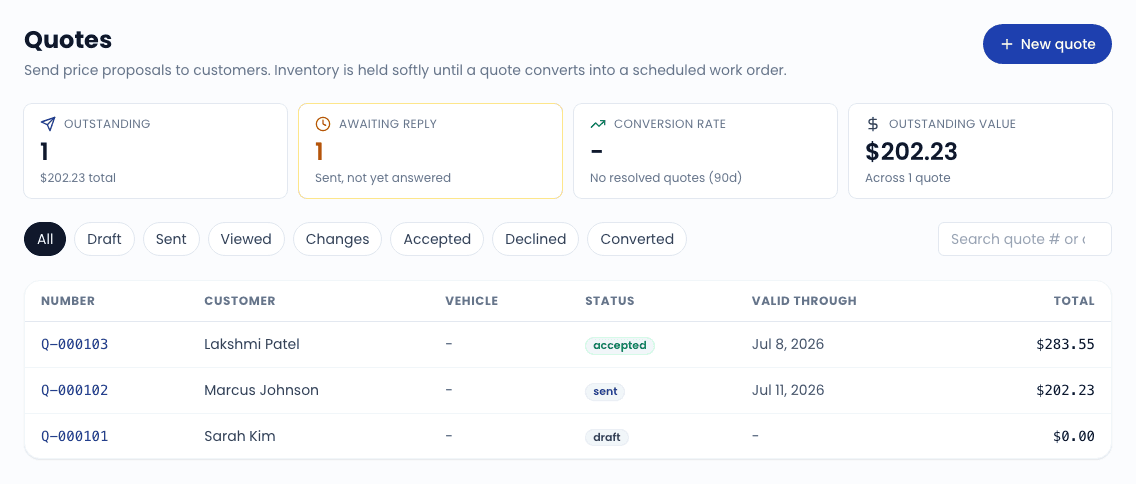
Quote statuses
The status chip on each quote tracks where it is in the lifecycle:
| Status | What it means |
|---|---|
| Draft | You are still building it. Not yet sent. |
| Sent | Sent to the customer via email or SMS. They have the public link but have not opened it yet. |
| Viewed | Customer opened the public quote page. |
| Changes | Customer requested changes via the public page. Their note is in the activity log. |
| Accepted | Customer signed off. Ready to convert to a work order. |
| Declined | Customer explicitly said no. |
| Expired | The valid-until date has passed. You can re-send to revive. |
| Converted | Quote has been turned into a work order or invoice. Read-only from here. |
| Canceled | You pulled it manually. |
The Quotes index has a filter chip for each status. The default view shows everything; click a chip to narrow.
Building a quote
See the full guide: Creating and sending a quote.
The short version:
- Click New quote from the Quotes index, or from the customer detail page.
- Pick the customer + vehicle (or skip the vehicle for non-vehicle work).
- Add line items - service-type packages, add-ons, parts (PartsTech lookup or manual), and fees.
- Review tax and totals.
- Save as draft, or send via email/SMS in one click.
What the customer sees
When you send a quote, the customer gets an email (and optionally an SMS) with a public link to a page they do not need to log in to. The link is tokenized and good only for that quote.
The public page shows:
- Your shop branding (logo and primary color from Settings -> Branding).
- Itemized line list with descriptions, quantities, and unit prices.
- Subtotal, tax breakdown, and total.
- Accept, Request changes, and Decline buttons.
- A free-text "questions or notes" field that posts back to your activity log.
If Customer can self-schedule from quote is enabled in Settings -> Quotes, an accepted quote also shows a time-slot picker so the customer can pick their own window. Most operators leave this off and confirm scheduling by hand.
Converting a quote to a work order
From the quote detail page, click Convert to work order once it is in the Accepted state. The work order inherits the line items, tax, and totals. You pick the date/time and tech; everything else carries over. The original quote moves to Converted and links to the new work order.
You can also convert directly to an invoice if the work has already been completed (rare, but supported for back-billing).
Validity and expiration
Each quote has a Valid until date that defaults to today + the org default (set in Settings -> Quotes, default 14 days). When the date passes, the status flips to Expired and the public link starts showing an "expired" banner. To revive an expired quote, open it, push the validity date out, and re-send. The customer gets a fresh email; the old link starts working again because the token is the same.
Automatic follow-up reminders
A nightly cron (/api/cron/quote-reminders) scans for quotes that have been in Sent status for 3 days without a customer response. For each one it creates a follow-up task assigned to the rep who sent the quote, linked back to the quote so one click takes you to the activity log.
The task is tagged #auto #quote-follow-up so you can filter the task list to handle all follow-ups in one pass. You can disable individual quotes from this program by canceling the quote (a draft or canceled quote does not trigger a reminder).
Related
- Creating and sending a quote
- Quote settings - default validity period, self-schedule toggle
- How invoicing works - what happens once the quote becomes a work order