Time Off & Availability
Mobile Service Sync tracks two things that decide when a technician can be scheduled:
- Time off - one-off absences (vacation, sick days) that a tech requests and a manager approves.
- Weekly availability - each tech's recurring working windows (for example, off every Sunday, or only 8am-1pm on Saturdays).
Approved time off removes the tech from online booking and auto-dispatch for those days, and both surfaces show warnings when you try to manually assign a job that conflicts.
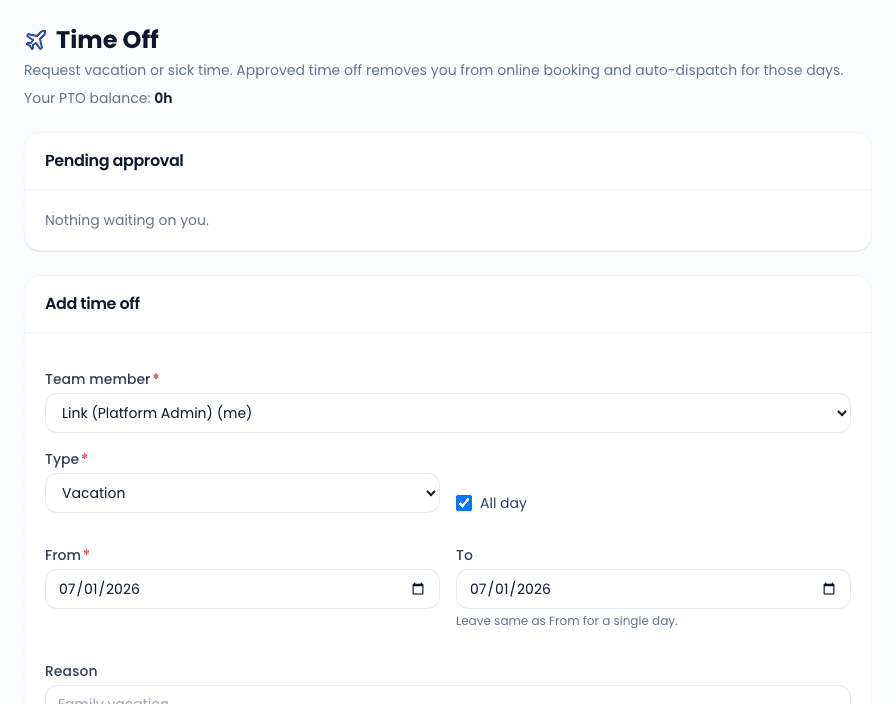
Requesting time off
Open Time Off in the sidebar (also available in the mobile app under More -> Time off).
Pick the type
Vacation, sick, personal, unpaid, or other.
Pick the dates
Either an all-day range (one or more full days) or a partial day (start and end times on a single date). All times are in your organization's timezone.
Add a reason and submit
The request lands in your history list with a pending badge and appears in your manager's approval queue.
If you have the approval permission yourself (managers and owners typically do), requests you file - for yourself or anyone else - are approved immediately and draw down PTO right away.
Approving and denying requests
Users with the Approve time off permission (or user-management rights) see a Pending approval queue at the top of the Time Off page. Each request shows the person, dates, type, and reason, with Approve and Deny buttons. When denying, you can add a note explaining the decision.
Request statuses:
| Status | Meaning |
|---|---|
| Pending | Waiting on a manager decision. Does not affect scheduling yet. |
| Approved | Blocks booking and auto-dispatch for those dates; PTO hours are deducted. |
| Denied | No scheduling effect. The decision note is visible to the requester. |
| Cancelled | Withdrawn. Any deducted PTO is reversed. |
PTO balances
The top of the Time Off page shows your PTO balance in hours. Approved time off deducts from the balance automatically; cancelling an approved request reverses the deduction. Managers can see balances for everyone in the approval queue.
Weekly availability
Recurring schedules live on the teammate record: Settings -> Team -> pick a teammate -> Availability.
The form is a Sunday-through-Saturday grid. For each day you can either:
- Mark the day Off, or
- Set a working window (start and end time).
A tech with no availability rows configured defaults to your business hours. Once any rows exist, the tech is treated as unavailable outside the windows you set.
How conflicts show up when scheduling
Time off and availability are soft constraints for manual scheduling - you always get a warning, but you can override it:
- Work order assign - the technician dropdown labels conflicted techs, for example "John (on time off)" or "John (outside their working hours)", shows an amber warning below the select, and asks you to confirm before assigning anyway.
- Schedule day board and week view - a tech's day header shows a Time off or Off badge on days they are unavailable.
- Map day panel - dragging a stop onto a tech who is off that day asks you to confirm the reassignment.
Online booking and auto-dispatch treat approved time off as a hard block - customers cannot book a tech who is off.
Time off in the mobile app
Technicians can handle the whole flow from the field:
- More -> Time off shows their PTO balance, their weekly availability, and their request history.
- Request time off files a new request with the same all-day / partial-day options as the web.
- Managers see the pending queue and can approve or deny from the phone.
Related
- Using the Schedule - where day badges and drag-and-drop warnings appear
- Add a Teammate - roles and the availability tab
- Mobile App - everything else techs can do from the field