How Invoicing Works
Every job that gets completed in Mobile Service Sync flows into an invoice. This article explains the lifecycle of an invoice from the moment a technician marks a work order complete through final payment, so you know what's happening at each step and where to find it in the app.
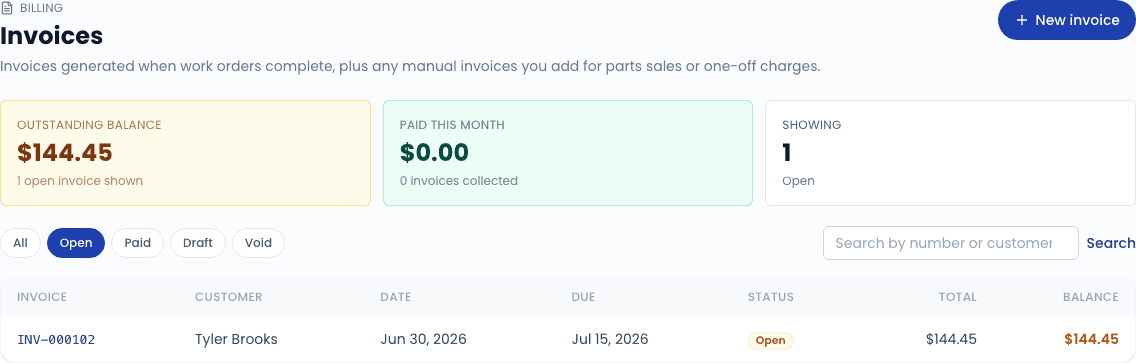
The four invoice statuses
Invoices move through four statuses. The status drives where it appears in the UI and what actions you can take.
- draft — A blank invoice you've started but haven't issued yet. Drafts don't count toward A/R, don't appear on the customer portal, and can be deleted with no audit consequences.
- open — Issued to the customer. Appears in the customer's portal, counts in A/R, and starts aging toward overdue. The vast majority of invoices in your account will spend most of their life here.
- paid — Fully paid. The status flips automatically once recorded payments cover the total. Overpayments stay "paid" — you can record a refund separately if needed.
- void — Canceled after issuance. Used when an invoice was sent in error (wrong customer, duplicate, etc.). Voiding doesn't delete the invoice; it preserves the audit trail and zeroes out the A/R impact.
Invoices are immutable once they're open or paid — line items, totals, and dates can't be edited. Mistakes get corrected by voiding the bad invoice and issuing a new one, or by recording a refund against the existing one.
The relationship between work orders, invoices, and payments
The three are linked in a one-to-many chain:
WorkOrder  ─→  Invoice  ─→  Payment(s)
   1            1                ≥ 0
- One WorkOrder produces exactly one Invoice when it's marked complete.
- One Invoice can have zero (unpaid) or many Payments (split payments, partial pays, deposits).
- The Invoice's
amountPaidCentsis the running sum of its successful payments. When that hits the total, the Invoice flips to paid.
You can also create a standalone invoice that isn't linked to a work order — useful for one-off charges (a parts-only sale, a goodwill credit, an annual fleet service contract). Standalone invoices behave the same way; they just have no workOrderId reference.
Issuing an invoice from a completed work order
This is the path 95% of your invoices will take.
Open the work order
From the Schedule or Work Orders list, click the job you're ready to close out.
Click "Mark complete"
This opens the completion form where you set the final total, tax, payment method, and (optionally) record payment in the same step.
Fill in the totals
The form prefills the line items from your service type, parts pulled from inventory, add-ons, and fees. You can adjust the subtotal — the form scales each line proportionally so the lines still add up to the new total.
Decide whether to record payment now
- Check Mark paid if the customer paid at the door (most consumer jobs). The invoice is created paid, with a Payment row attached, and gets pushed to QuickBooks as a Sales Receipt.
- Leave Mark paid unchecked for fleet jobs that bill net-30. The invoice is created open and gets pushed to QuickBooks as an Invoice; you'll record a payment later when the check arrives.
Submit
You're redirected back to the work order, which now shows the linked invoice number. The invoice is also visible from the customer's profile under Invoices.
Recording a payment on an open invoice
When the check arrives or the customer pays a fleet invoice online, record the payment from the invoice page.
Open the invoice
From Invoices in the sidebar, click the invoice. Or jump to it from the customer's profile.
Click "Record payment"
Enter the amount, method (card / ACH / cash / check), and an optional note. Today's date is prefilled — change it if you're recording an older payment.
Save
The payment is saved against the invoice. If the new total paid covers the invoice, status flips to paid automatically and paidAt gets stamped to the payment's received date.
You can record multiple partial payments against the same invoice. The status stays open until the running total reaches the invoice total, then it flips to paid.
How taxes get calculated
Each line item carries a tax category (Parts / Labor / Disposal / Other). When you mark a work order complete, the tax calculator looks up the active tax rate that applies to your shop's location and multiplies it against the taxable subtotal.
If a line is non-taxable (a labor-only state, a charity discount), set its tax category to one your tax rates exempt — see Taxes for the configuration UI.
Where to find each surface
| What | Where in the app |
|---|---|
| All invoices, any status | Invoices in the sidebar |
| Just open A/R | Invoices, filter by status = open |
| Invoices for one customer | Customer profile → Invoices tab |
| Aging report (oldest unpaid) | Reporting → Receivables |
| Daily cash sheet | Reporting → Today's revenue |