Triaging Fleet Service Requests
When a fleet manager submits a service request from the Fleet Portal (or a fleet contact submits via the portal's request form), the request lands in your Requests inbox in the CRM. From there you confirm the tech and time slot, and the request becomes a work order.
The Requests inbox lives under Requests in the sidebar. It only shows pending requests across all your fleet accounts; once you confirm or decline, the row drops off the inbox and lives on the WO (or the request's history) instead.
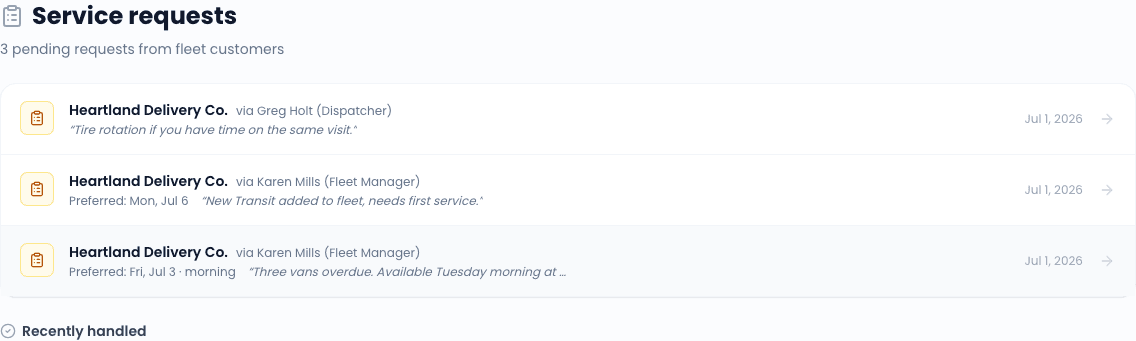
What lands in the inbox
Each row shows:
- Customer - the fleet account that submitted the request.
- Contact - the named contact who filed it (Fleet Manager, AP, Dispatcher, etc.).
- Preferred date and window - what the fleet asked for. "Tuesday morning", "next week any time", or a specific date.
- Notes - free-text from the request form. "Three trucks at the yard, all overdue".
- Submitted at - when they hit submit.
Rows sort newest-first. There is no pagination because we expect the queue to stay short (you triage these daily); if your queue does get long, it is a signal you are behind on confirmations and customers may be wondering.
Confirming a request
Click the request
You land on a focused confirm page. The customer, vehicles, notes, and preferred window are read-only; you cannot edit them here. If something is wrong, the right move is to contact the fleet directly - the form fields are the customer's words.
Pick a tech
The tech dropdown shows everyone with the Technician, Office Manager, Admin, or Owner role. Assign based on workload and route. (The schedule view in another tab is the easiest way to see who has bandwidth.)
Pick a time slot
The slot picker shows availability around the customer's preferred window. If the customer asked for "Tuesday morning" and your team is booked solid, you can shift to Tuesday afternoon - the customer gets a notification of the confirmed time, not just an acknowledgement.
Confirm
Click Confirm. The request flips to confirmed, a work order is created with the line items pre-filled from the fleet's default service package, the customer gets a confirmation email (and SMS if opted in), and the WO shows up on the schedule.
Declining a request
Sometimes you cannot take the job - out of area, fully booked, or the request is duplicative of one already on the books. Click Decline instead of confirm. You can add a one-line reason ("Booked through next week, please re-request after the 15th") that gets included in the decline notification to the customer.
Declined requests do not auto-suggest alternatives. If you want to offer one ("We can do Wednesday at 2pm instead"), reply to the fleet contact directly via email or the inbox.
What the fleet manager sees
After the customer submits the request via the portal, they see a "Request received" confirmation page. They get an email confirmation immediately.
When you confirm, they get a "Confirmed for <date/time>" email with the assigned tech's name. When you decline, they get a "Could not accommodate" email with your reason.
Notifications
Office Manager, Admin, and Owner roles get an in-app notification when a new request arrives. Configure email and SMS for the Fleet request event in Settings -> Notifications.
Related
- Fleet Portal overview - the customer-facing surface
- Invite fleet contacts - who can submit requests
- Schedule a work order - the WO that gets created on confirm