Find Your Review Links
Automated review requests text your customer a direct link to leave a review. For that to work, Mobile Service Sync needs the actual review URL for each platform you care about. This page shows you where to find them.
Once you have the links, paste them into Settings -> Reviews under Platform URLs. There are three slots: Google, Facebook, and Other (a custom label plus URL, for example Yelp).
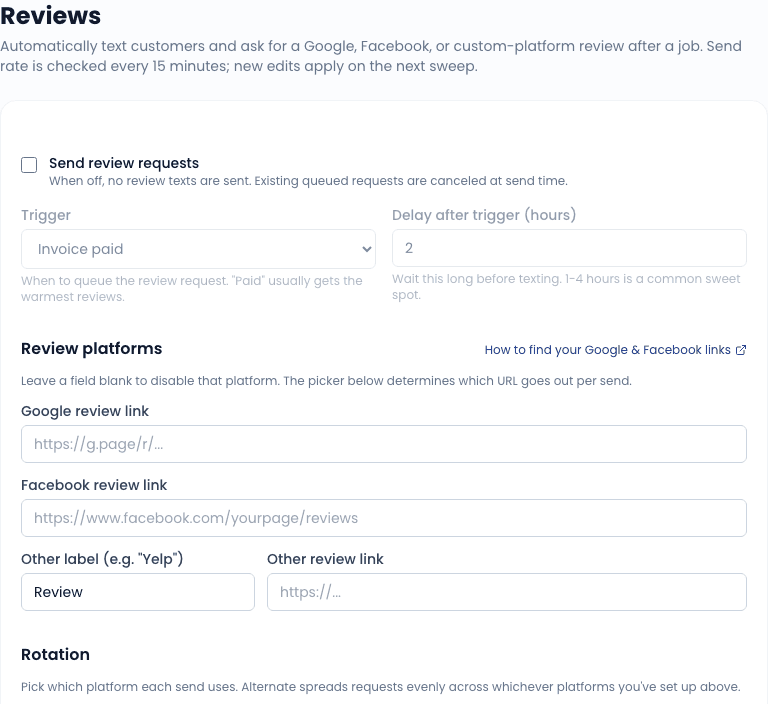
Google review link
Google gives every verified Business Profile a short "leave a review" link that opens the review dialog directly.
Open your Google Business Profile
Go to business.google.com and sign in with the Google account that manages your business listing. If your business shows up on Google Maps but you have never claimed it, claim it first - you cannot get a review link for an unclaimed listing.
Find "Ask for reviews"
From the profile home screen, click Ask for reviews (on some layouts it is under the Get more reviews card, or in the menu when you search your own business name on Google and manage the listing from search results).
Copy the short link
Google shows a share dialog with a link that looks like https://g.page/r/XXXXXXXX/review. Copy it.
Paste it into Mobile Service Sync
Settings -> Reviews -> Platform URLs -> Google review link. Save.
Test the link in a private/incognito browser window before saving. It should open a Google sign-in prompt followed by the star-rating dialog for your business - not a search results page.
Facebook review link
Facebook reviews (now called "Recommendations") live on your business Page's Reviews tab.
Confirm reviews are turned on
On your Facebook business Page, open Settings -> Privacy -> Page and tagging (or Templates and tabs on classic Pages) and make sure the Reviews tab is enabled. If reviews are off, the link below shows an empty page.
Build the link
Your review link is your Page URL plus /reviews:
https://www.facebook.com/yourpagename/reviews
Replace yourpagename with the "username" part of your Page URL. You can see it by opening your Page and copying what comes after facebook.com/.
Paste it into Mobile Service Sync
Settings -> Reviews -> Platform URLs -> Facebook review link. Save.
Other platforms (Yelp, etc.)
The Other slot takes any URL plus a label that shows to the customer.
- Yelp - open your business page on yelp.com and copy the URL, for example
https://www.yelp.com/biz/your-business-name. Yelp discourages directly asking for reviews, so consider their policies before using it in automated requests. - BBB, Angi, Nextdoor - same idea: find your public profile page, copy the URL, give it a clear label.
What the customer receives
The review request goes out as a text message using your SMS template (editable on the same settings page), with the link appended. If you configure more than one platform, the rotation setting on the Reviews page decides which link each request uses: pin every request to a single platform (Google only, Facebook only, or Other only) or alternate across the platforms you configured, request by request.
Related
- Review Requests - triggers, delay, and template settings
- SMS Setup - the office number review requests send from