Tasks
Tasks are internal to-dos: things that need to happen but are not work orders. Call the customer back, order the part, follow up on the proposal, file the receipt. They live separately from work orders so the schedule stays focused on jobs you are dispatching.
Find tasks under Tasks in the sidebar.
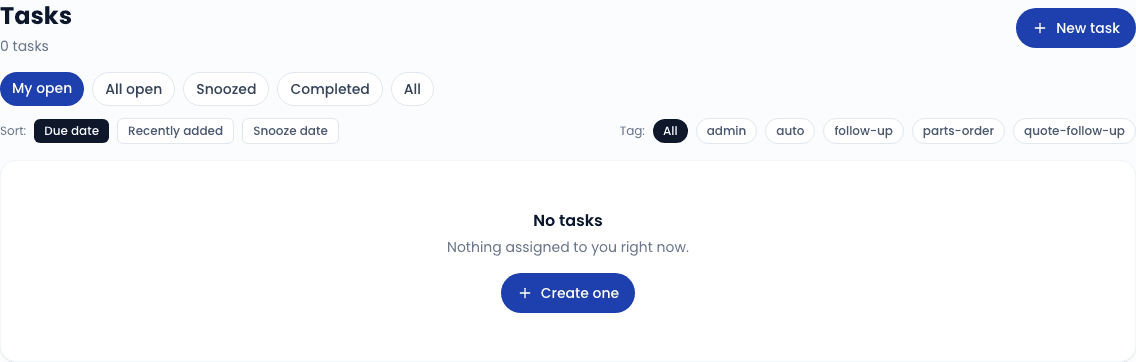
Filters
The Tasks index has five filter chips along the top:
| Filter | What it shows |
|---|---|
| My open | Tasks assigned to you that are open or in progress, excluding currently-snoozed tasks. The default landing view. |
| All open | Every open task across the team, excluding currently-snoozed tasks. Useful for managers triaging the board. |
| Snoozed | Open or in-progress tasks where the snooze period has not yet elapsed. |
| Completed | Done tasks. Read-only history. |
| All | Everything, including snoozed and completed. |
Sort
Three sort options:
- Due date (default) - open before done, then due asc, then newest first.
- Recently added - newest createdAt first.
- Snooze date - earliest snooze expiry first; pairs naturally with the Snoozed filter.
Tags
Tasks can be tagged with one or more labels (#follow-up, #parts-order, #urgent, etc.). Tags are managed from the task detail page; the Tasks index shows a tag chip on each row when present.
Click any tag in the URL bar (or use the tag filter input) to scope the list to just tasks carrying that tag.
Creating a task
Click "New task"
Top-right of the Tasks index.
Fill in the form
- Subject - required. One-line description of what needs to happen.
- Details - optional notes, longer context.
- Assigned to - defaults to you. Pick a teammate to delegate.
- Due date - optional. Drives the sort order and any reminder notifications.
- Linked record - optional. Link the task to a customer, work order, quote, or fleet lead so the task shows up on that record's page too.
Save
The task appears in the assignee's "My open" view.
Working a task
Click any task in the list to open it. From the detail page you can:
- Mark in-progress - signals to the team that you have started.
- Mark done - moves the task to Completed. The completion gets a timestamp and an "Completed by" stamp.
- Reassign - pick a different owner.
- Edit due date - push it out if needed.
- Snooze - hide the task from "My open" / "All open" until a chosen date. Use for things you cannot do anything about right now ("waiting on customer", "part arrives Monday"). Snoozed tasks live in the Snoozed filter; they auto-resurface when the date elapses.
- Add or remove tags - the tag editor on the right side of the detail page.
- Add a comment - threaded comments on the task for back-and-forth.
Auto-created tasks
Some tasks get created automatically by background jobs:
- Quote follow-up - any quote that has been Sent for 3 days without a customer response gets a follow-up task created against the rep who sent it. The task links back to the quote. This cron runs nightly via
/api/cron/quote-reminders.
Auto-created tasks are tagged with the source (#auto, #quote-follow-up) so they are easy to filter or bulk-handle.
Tasks attached to other records
When a task is linked to a customer, work order, quote, or fleet lead, the task appears in two places:
- The Tasks list under the assignee's view.
- A "Tasks" panel on the linked record's detail page, showing open and recently completed tasks for that record.
This makes it easy to see "what is outstanding on this fleet account" without trawling the Tasks list.
Notifications
By default, the assignee gets an in-app notification when:
- A task is assigned to them.
- A task they own is overdue.
- A teammate comments on their task.
Configure email and SMS for each of these events in Settings -> Notifications.
Related
- Schedule a work order - for things that need to happen on-site (use work orders, not tasks)
- Notification preferences - tune what pings you about your tasks