Time Tracking
Time tracking captures when technicians and office staff are on the clock. Hours roll up by user and by day, push to QuickBooks Online as time activities (when QBO is connected), and feed any payroll reporting you do downstream.
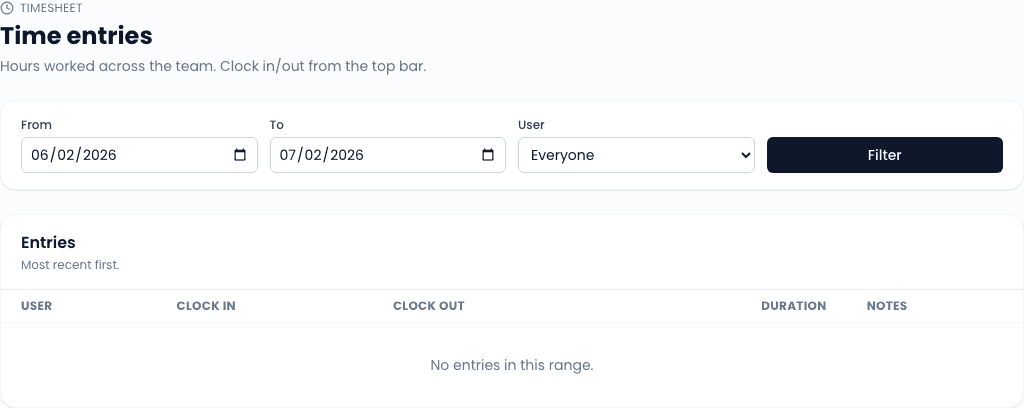
Find the time view under Time in the sidebar.
Clocking in and out
Technicians clock in and out from their mobile view (or the desktop sidebar's clock widget). Office staff who track hours do the same. Each clock-in starts an open shift; clocking out closes it with a duration.
A shift that is still open shows a running clock and a "Currently working" badge. Managers see this in their view too, so the dispatcher can see who is on the clock without asking.
What managers see
Users with the Admin, Owner, or Office Manager role land on a manager view of the Time page. They see:
- A header summarizing total hours for the selected date range across the team.
- A row per user with their total hours, currently-running shift (if any), and a link through to their detail.
- A date-range filter (defaults to the last 30 days) with From and To inputs.
- A user filter so you can scope to a single tech.
Technicians (without manager permissions) see only their own time.
Editing a shift
From a user's time detail, you can:
- Adjust an end time - they forgot to clock out at the end of the day. Edit closes the open shift.
- Add a shift manually - they worked but did not clock in. Enter the start, end, and an optional note.
- Delete a shift - rare, used for clearly-bogus entries (a 16-hour test shift, a duplicate).
Every edit gets logged with the editor's user ID and timestamp so payroll has an audit trail.
QuickBooks Online push
When QBO is connected (Integrations -> QuickBooks) and Push time to QBO is enabled in the integration settings, closed shifts sync to QuickBooks as time activities once per day via a cron job. The mapping:
- Shift duration -> QBO time activity hours/minutes
- User -> QBO employee (matched by email; configure mappings on the QBO settings page if names differ)
- Date -> shift start date
- Note (if any) -> QBO time activity description
Shifts that are still open are not pushed; they wait until they close. Edits to a previously-pushed shift re-push the updated values on the next run.
Reporting
The header totals on the Time page are the simplest view. For richer payroll reporting:
- By user, by day - filter the date range tight (a week or two) and the per-user rows show daily breakdowns.
- By work order - work orders track their own labor time separately (see Completing a work order). Time-on-task on the WO is different from shift time on the Time page.
Related
- Completing a work order - per-WO labor time
- QuickBooks integration - syncing time activities
- Team settings - roles that gate the manager view