SMS Inbox
The Inbox is the central place to see, read, and reply to every text message that hits your shop number. Find it under Inbox in the sidebar.
Inbound texts from existing customers thread under that customer's record automatically. Texts from unknown numbers land as standalone conversations with a Link to customer prompt so you can attach them to the right record before history piles up under the wrong name.
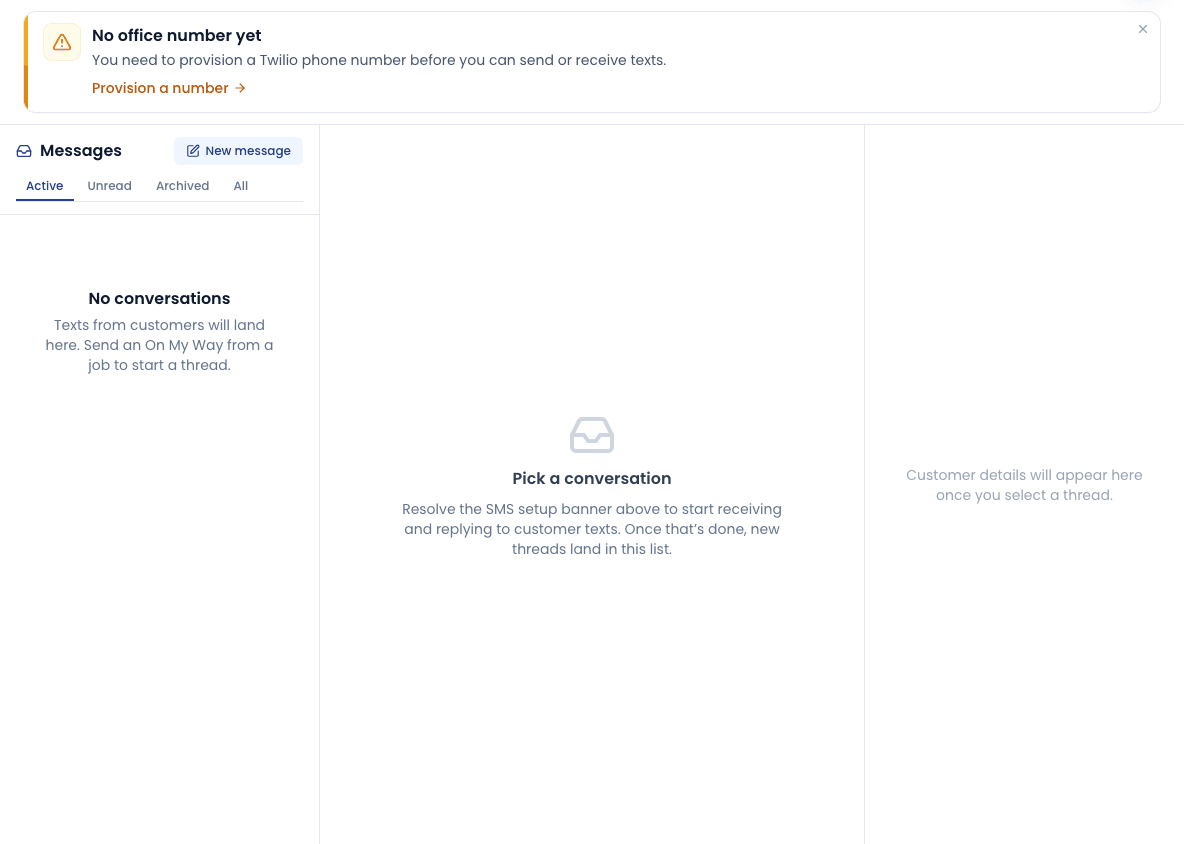
Layout
Three panes, side by side:
- Left: Conversation list. Most recently active conversations on top. Filter chips along the top let you narrow by status (Open, Awaiting reply, Resolved).
- Middle: The selected conversation - full timeline of inbound and outbound messages, with timestamps and delivery status. The reply box is pinned at the bottom.
- Right: Customer details for the selected conversation - name, phone, email, opt-in status, and a link to their full customer profile. When the number is not on file, this pane shows the Link customer card instead.
Selection lives in the URL (?selected=<conversationId>), so deep-links and browser back/forward work cleanly.
Replying
Pick a conversation
Click any row in the left pane.
Type your reply
The reply box is at the bottom of the middle pane. Standard SMS limits apply (160 characters per segment). The character counter on the right shows how many segments your message will use.
Send
Hit Send or Cmd/Ctrl + Enter. The message appears in the timeline with a "sending" indicator that flips to "delivered" when the carrier confirms (usually within a few seconds).
Replies use your tenant's configured office number (set up in Settings -> SMS). If you have not bound a number yet, the reply box is disabled and a banner at the top of the page points you to the provisioning wizard.
Sending photos and files
The reply box has a paperclip Attach file button for sending media with a message - a photo of a leaking gasket, a PDF estimate, a before/after shot.
- Allowed types: JPEG, PNG, HEIC, HEIF, WebP, GIF images, and PDF.
- Size limit: 5 MB per file.
- Images go out as a real MMS - the customer receives an actual picture message.
- PDFs and other files are hosted securely and sent as a link in the message body; the customer taps the link to view or download.
Inbound picture messages from customers work too: images show as thumbnails in the conversation timeline (click to open full size), and files show as labeled links. The same attachment support is available in the mobile app inbox, so techs can text a photo from the driveway.
Linking an unknown number to a customer
When a text comes in from a number that does not match any existing customer, the conversation lands in the inbox under whatever name the carrier reports (often just the bare phone number).
The right pane shows a Link customer card. You can either:
- Search for an existing customer - typeahead by name, phone, or email. Select to attach the conversation; future messages from this number will thread under that customer.
- Create a new customer from this conversation - opens the new-customer form with the phone number pre-filled. Save, and the conversation links automatically.
Conversation status
Each conversation has a status chip you can change from the right pane:
- Open - new or unresolved. The default.
- Awaiting reply - you have replied; you are waiting on them.
- Resolved - done with this thread. Resolved conversations drop out of the default Open filter but stay searchable.
Status is per-conversation, not per-message. A new inbound message on a Resolved conversation auto-flips it back to Open.
SMS opt-in and consent
Inbound texts do not require opt-in - if a customer texts you first, you can text them back. Outbound texts you initiate (appointment reminders, review requests, marketing) do require explicit opt-in, captured on the customer record via the SMS opt-in checkbox.
If a customer texts STOP, the carrier marks them opted out and our system records the smsOptOutAt timestamp. They will not receive any further outbound texts from your shop, including automated reminders. They can text back START to re-opt-in.
Notifications
By default, new inbound texts trigger an in-app notification badge on the bell icon. Configure email and SMS notifications for inbound texts per-user in Settings -> Notifications under the Inbound SMS row.
Related
- SMS settings - office number, A2P 10DLC registration
- Notification preferences - who gets notified about inbound texts
- Add a customer - capturing SMS opt-in